Categories: AI Video Workflow, Creator Strategy, Production Process
Tags: happy horse, ai video workflow, content strategy, creator toolkit
Introduction
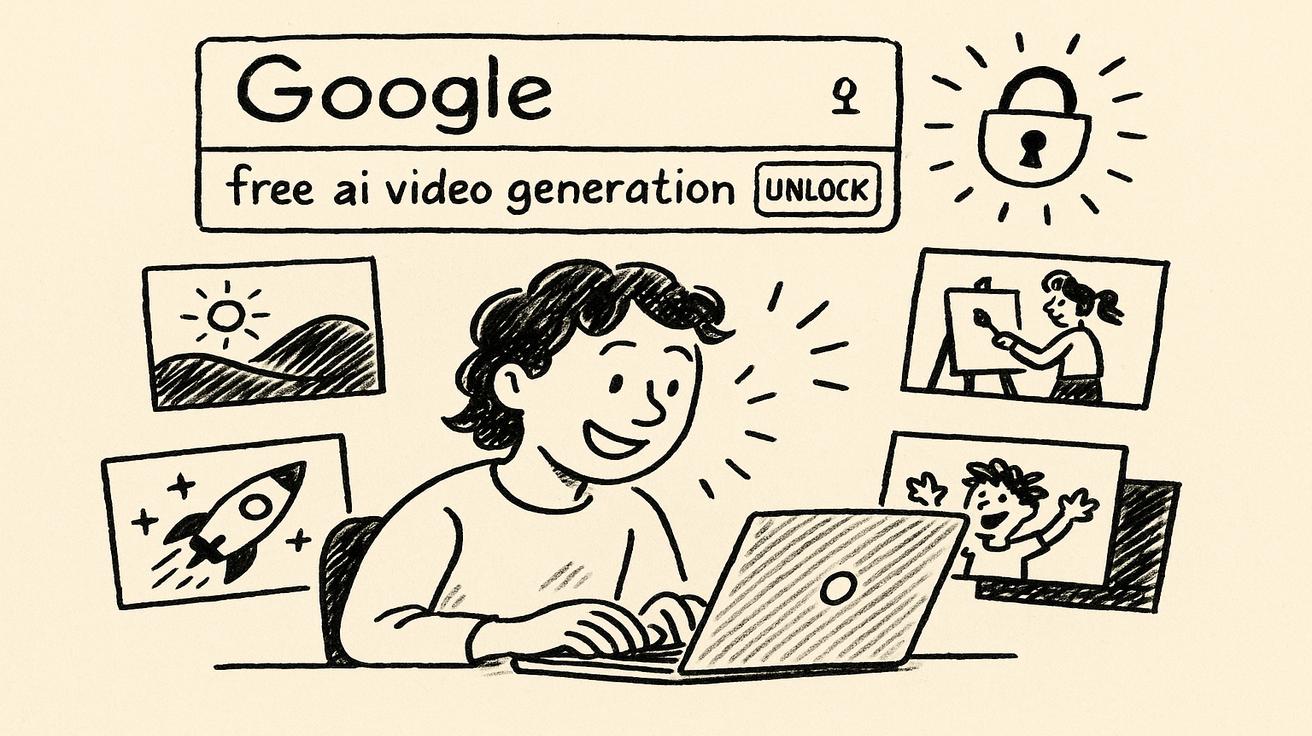
This guide outlines a practical Happy Horse production framework for leveraging Google's Veo 3.1 AI video generator. Our focus is on streamlining your workflow for clearer planning, faster execution, and consistent publishing.
Core Content Blocks
What Is Veo 3?
Veo 3 is Google's most advanced AI video generation model. It creates high-quality video clips from simple text prompts, representing a significant leap in AI-powered video creation. This technology is built on Google's state-of-the-art generative AI.
Happy Horse execution path:
- Build your first version in Text to Video or Image to Video.
- Refine motion/style with Video to Video.
- Add sound layers via Video to Audio when needed.
- Publish one clean variant and one experiment, then compare performance.

Why this works:
- Keeps production repeatable.
- Reduces random editing loops.
- Makes weekly iteration measurable.
Is Veo 3 Really Free?
As of April 2026, Veo 3.1 is genuinely free for all Google account holders. This is not a limited trial; Google has made the core functionality of Veo 3.1 available at no cost to anyone with a standard Google account.
How to Access Veo 3 for Free: Step-by-Step
Getting started with free Veo 3 access is straightforward. Follow these steps to begin generating AI videos in minutes:
- Sign In to Google Vids: Navigate to
vids.newin your web browser. This shortcut takes you directly to Google Vids, the platform hosting Veo 3.1. You'll need to sign in with any standard Gmail or Google Workspace account. - Access the AI Video Generation Tool: Once in Google Vids, locate the "AI Video" or "Veo 3.1" option in the creation toolbar. This interface is integrated directly into the Google Vids editor, allowing easy incorporation of AI-generated clips into larger video projects.
- Enter Your Prompt: Write a detailed text description of the video you want to create. The more specific your prompt, the better the results. Include details about subjects, actions, settings, and desired styles.
- Generate Your Video: Click the "Generate" button. Veo 3.1 will process your request, typically taking 30-90 seconds, depending on server load and prompt complexity. A progress indicator will be displayed during generation.
- Review and Download: Once complete, your video clip will appear in the timeline. You can preview it directly in Google Vids. If satisfied, download it as an MP4 file or continue editing within the Google Vids environment.
In addition to Google Vids, some users can access Veo 3.1 through Google Flow (flow.new), Google's AI-powered creation platform, with a similar process. However, Google Vids currently offers the most direct, fully-featured, and generous free tier experience for Veo 3.1 video generation as of April 2026.
Veo 3 Free Limits: What You Can and Can't Do
Google Vids integrates Veo 3.1 into a complete video creation suite. This means you can generate AI clips and immediately incorporate them into larger projects, adding transitions, text overlays, music, and other professional editing tools. The Veo 3.1 interface within Google Vids is designed for intuitive use.
Veo 3 Free vs Paid: Is It Worth Upgrading?
This section typically compares the free tier's capabilities with paid options, discussing potential benefits of upgrading for advanced features or higher usage limits.
Tips for Getting the Best Results from Veo 3 Free
To maximize your results, focus on crafting detailed and specific prompts. Experiment with different descriptive words for subjects, actions, environments, and artistic styles.
Veo 3 Free vs Competitors' Free Tiers
This section would typically compare Veo 3.1's free offerings with those of other AI video generators, highlighting its competitive advantages or unique features.
Practical Weekly Workflow
- Choose 2 to 3 content blocks from this article and define a weekly objective.
- Produce your first drafts with Text to Video and Image to Video.
- Improve structure and style with Video to Video.
- Add audio where needed via Video to Audio or Text to Music.
- Publish and keep only the formats that consistently outperform baseline.
Conclusion
The most reliable way to scale content output is to standardize your production process. Maintain a stable structure, iterate by section, and only scale what proves performance.
Call to Action
- Start with Image to Video: https://openhappyhorse.io/image-to-video
- Start with Text to Video: https://openhappyhorse.io/text-to-video
- Refine with Video to Video: https://openhappyhorse.io/video-to-video
- Add audio with Video to Audio: https://openhappyhorse.io/video-to-audio
- Build supporting visuals: https://openhappyhorse.io/text-to-image
FAQs
1) Can this workflow work for a solo creator? Yes. Start with a small weekly scope and reuse the same production blocks.
2) How many variants should I test per post? 2 to 4 focused variants are usually enough to identify clear winners.
3) Should I prioritize trends or consistency? Use trends for reach, but keep a consistent format system for long-term brand memory.